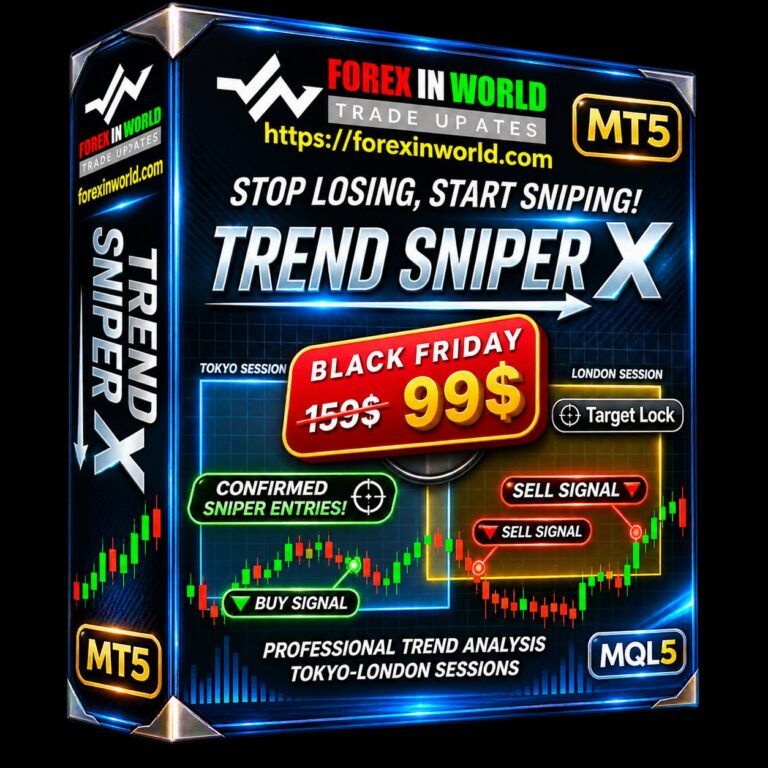
Trend SniperX MT4 is listed on the MQL5 Market as a trend-following indicator designed to help traders interpret market direction and identify potential changes in price momentum. Its product listing describes features such as coloured trend candles, directional arrows, multi-timeframe analysis and market-session information. However, an important platform compatibility detail needs attention before traders download or purchase the software.
The product appears under the MetaTrader 4 indicator category, but its published technical description identifies MetaTrader 5 as the supported platform. This discrepancy makes it particularly important to verify the available MT4 package and its compatibility before proceeding.
What Is Trend SniperX Indicator?
Trend SniperX is presented as a technical analysis tool for traders who want to follow market direction without relying entirely on manual chart interpretation. Its advertised approach combines trend identification with visual signals that can help traders recognise potential changes in market conditions.





The indicator is associated with developer Sarvarbek Abduvoxobov and is listed on the MQL5 marketplace. Its description focuses on multi-timeframe analysis, trend strength evaluation and the identification of potentially uncertain market conditions.
Rather than treating every price movement as a trading opportunity, the advertised methodology aims to distinguish directional market behaviour from periods where the trend may be less clear.
How Trend SniperX Approaches Market Analysis
The marketplace description outlines several analytical components that form the basis of the Trend SniperX system.
Multi-Timeframe Trend Analysis
Multi-timeframe analysis allows traders to examine market direction using information from a higher timeframe while monitoring a lower-timeframe chart.
For example, a trader analysing a five-minute chart may also consider the hourly market direction before evaluating a potential entry. This approach can provide additional context, although agreement between timeframes does not guarantee that a trade will succeed.
The product description advertises independently selectable higher-timeframe analysis.
Coloured Trend Candles and Directional Signals
The published description identifies coloured candles representing different market conditions, including buying, selling, weakness and changes in direction.
It also describes BUY and SELL arrows associated with confirmed trend changes. These visual elements are intended to make directional information easier to interpret directly on the chart.
A displayed arrow should not automatically be treated as an instruction to open a position. Traders still need to evaluate price structure, available liquidity and the surrounding market conditions.
Stochastic and ADX Confirmation
The developer’s description also mentions two additional analytical components.
The Stochastic confirmation module is advertised with three possible states: CONFIRMED, PARTIAL and NOT CONFIRMED. This provides a way to distinguish between different levels of momentum confirmation.
The Average Directional Index (ADX) component is described as a trend-strength monitor. ADX is commonly used in technical analysis to assess the strength of a directional movement rather than determine whether the market is bullish or bearish by itself.
Session Market Information
The advertised Session Market Box identifies four major forex trading sessions:
- Sydney
- Tokyo
- London
- New York
Session information can help traders understand when different regional markets are active and how trading activity may change throughout the day.
“Trend identification is only one part of a trading decision. The real challenge is determining whether a directional signal is supported by market structure, suitable execution conditions and a clearly defined level of risk.”
Trend SniperX MT4: Product Details and Compatibility
The following information reflects the marketplace listing as checked on 17 November 2026. Pricing, versions and marketplace information can change.
Published Marketplace Information
| Specification | Available listing information |
|---|---|
| Product name | Trend SniperX MT4 |
| Developer | Sarvarbek Abduvoxobov |
| Marketplace | MQL5 Market |
| Publication date | 31 August 2026 |
| Displayed version | 3.30 |
| Last listed update | 10 November 2026 |
| Displayed price | $99 USD |
| Marketplace activations | 20 |
Important compatibility clarification: Although the product title and marketplace breadcrumb identify MT4, the technical specifications and main description explicitly state MetaTrader 5. The available listing therefore does not establish that a compatible MT4 executable is available. Confirm this with the developer before purchasing or installing it.
The official listing can be accessed here:
Trend SniperX MT4 – MQL5 Market
How to Download and Install Trend SniperX
The installation process depends on the actual platform package supplied by the developer. Traders should not assume that a MetaTrader 5 indicator file will work in MetaTrader 4.
Step 1: Check the Product Package
Visit the official marketplace listing and verify whether the developer provides a separate MT4-compatible version.
If the platform information remains unclear, request confirmation before making a purchase.
Step 2: Install the Compatible Indicator
If the developer confirms that an MT4-compatible .ex4 file is supplied independently, the usual custom-indicator installation procedure is:
- Open MetaTrader 4.
- Select File and then Open Data Folder.
- Navigate to MQL4 and open the Indicators folder.
- Copy the compatible indicator file into that folder.
- Return to MT4 and refresh the Navigator window.
- Locate the indicator under Custom Indicators and attach it to a chart.
MetaTrader’s official documentation explains the custom-indicator installation and chart attachment process in its Custom Indicators guide.
If the indicator is distributed through the MQL5 Market, follow the marketplace installation instructions associated with the correct product and terminal.
Step 3: Configure and Evaluate the Indicator
Once compatibility and installation are confirmed, review the available settings and notification options. Begin with historical chart analysis and a demo account before considering live trading.
Do not enable external DLL permissions or other security-sensitive settings unless the developer’s documentation specifically requires them and the source is trusted.
What Traders Should Consider Before Using Trend SniperX
A trend-following indicator can simplify chart interpretation, but it cannot remove the uncertainty associated with financial markets.
One important consideration is signal timing. A signal that appears after a substantial price movement may offer a different trading opportunity from one that appears near the beginning of a new trend.
Traders should also investigate whether historical arrows remain fixed after subsequent candles form. Comparing live signals with historical chart displays can help identify potential repainting or signal-timing differences.
Execution conditions deserve attention as well. Spreads, slippage and broker-specific pricing can affect the difference between a chart-based entry and an executed trade.
The presence of multiple confirmation tools does not establish profitability. Independent testing across different market conditions is necessary before drawing conclusions about performance.
Is Trend SniperX Suitable for Every Trading Style?
The advertised multi-timeframe approach may be relevant to traders who prefer combining broader market direction with shorter-term chart analysis.
However, suitability depends on the trader’s strategy, execution environment and ability to interpret the indicator’s signals. A scalping approach, for example, faces different spread and execution considerations from a longer-term trading strategy.
The product description alone does not provide independently verified evidence of profitability, drawdown or long-term trading performance.
For this reason, traders should evaluate the indicator as an analytical aid rather than a complete trading strategy.
Frequently Asked Questions
1. Can an MT5 indicator file be converted into an MT4 indicator simply by changing its extension?
No. MetaTrader 4 and MetaTrader 5 use different programming environments, MQL4 and MQL5. Changing a file extension does not convert the underlying program or make it compatible with another platform. A genuine conversion generally requires appropriate source-code changes and compilation.
2. How can traders determine whether Trend SniperX generates repainting signals?
A useful evaluation involves recording signals as they appear in real time and comparing them with the historical chart after additional candles have formed. Screenshots, timestamped records and forward testing can help identify whether previously displayed signals change or disappear.
3. Why might a multi-timeframe indicator display different information across brokers?
Different brokers can provide different historical price feeds, candle boundaries and server-time settings. These differences can affect higher-timeframe calculations and the timing of signals, even when traders use identical indicator settings.
4. Can the indicator’s displayed signals be used to evaluate a complete trading strategy?
Not by themselves. A trading strategy also needs defined entry conditions, position sizing, exit rules and transaction-cost assumptions. Signal frequency and directional accuracy alone do not establish whether a strategy has positive risk-adjusted returns.
5. What should traders request from the developer when platform compatibility is unclear?
They should request explicit confirmation of the supported terminal, the correct executable file format, the current version, licensing requirements and any platform-specific installation instructions. This is particularly relevant when the marketplace title and technical specifications identify different MetaTrader platforms.
For access to the available download instructions, visit the social locker below this article and follow its unlocking process. If you experience difficulty or need assistance, contact ForexInWorld support through Telegram.
⬇️⬇️⬇️⬇️⬇️
For Instant Indicator Access pay by following payment options. Pay $25 only.
-
Pay in Your Local Currency
-
Pay with Cryptocurrency
Two payment options are provided below.
Please choose either Option 1 or Option 2 and complete your payment.
If you face any issues while making a payment, please contact us directly using the contact details provided below. We will be happy to assist you:
⦿ Email Address: forexinworld@gmail.com
⦿ Telegram Address: https://telegram.me/FxCare
⦿ Payable Amount: $25 (USD)
Option 1

====================
If you face any difficulty while making a payment using Option 1, Try Option 2 instead.
Option 2
After payment done, please send your Payment transaction number/ reference ID/ or screenshot of your Payment transaction details to one of the contact details given below.
If you face any issues while making a payment, please contact us directly on Telegram for assistance: https://t.me/FxCare
Pay and Download this INDICATOR.
We accept 300+ cryptocurrencies. Pay $25 through any cryptocurrency using the following payment gateway. If you do not find any Indicator in forexinworld.com, then contact us directly. Contact details are given below.
Contact us at the details given below:
⦿ Email Address: forexinworld@gmail.com
⦿ Telegram Address: https://telegram.me/FxCare


















TOP 28
FOREX BROKERS
Choose your broker, sign up through an eligible cashback link, trade as usual, and receive rebates according to the offer terms.
80%
Choose from these 28 brokers
 XM
 Elev8
 Exness
 JustMarkets
 HFM
 TMGM
 Valetax
 Headway
 Markets4you
 RoboForex
 Vantage Markets
 IC (IC Markets)
 FxPro
 Tickmill
 FP Markets
 Weltrade
 Axi
 Ultima Markets
 TitanFX
 Harmovest Capital
 FP Trading
 VT Markets
 MTrading
 FXTM
 FIBO Group
 Windsor Brokers
 GO Markets
 FXPrimus
How to get cashback
Select one of the brokers above and check its available cashback offer.
Open an account using the eligible cashback or partner link.
Trade in an eligible account and follow the offer's rules.
Get eligible rebates based on the program's payout method and schedule.
*“Up to 80%” is a maximum promotional claim, not a guaranteed cashback rate. Actual rebates, supported countries, account types, trade eligibility and payout terms vary. Broker cards use the ForexInWorld cashback link; check the offer terms and account eligibility before signing up. Forex/CFD trading involves substantial risk.